Blur a photo online to soften backgrounds, reduce distracting details, hide sensitive areas, or create focus effects for websites, social media, ecommerce, and branded content.
Blur photos from your browser for social, web, privacy, and branding use cases No heavy editing app required. Discover how below.
How to blur a photo in 3 steps
Blur images online without technical skills
Blurring an image is a common editing step when you want to soften a background, reduce distracting details, protect private information, or create a more focused composition. Pixelixe lets you do that directly in the browser with a simple blur slider and instant download.
1
Upload your image
Photo, product shot, or branded visual
Start with the image you want to blur in Pixelixe Studio. This works well for portraits, product visuals, campaign images, screenshots, and background photos.
2
Adjust the blur effect
Move the blur slider
Open the blur control, move the slider, and watch the effect update in real time. This helps you find the right balance between readability, privacy, and visual style.
3
Download the result
PNG or JPEG export
Download the blurred image as PNG or JPEG and use it on your website, in a campaign, on social media, or in another visual workflow.
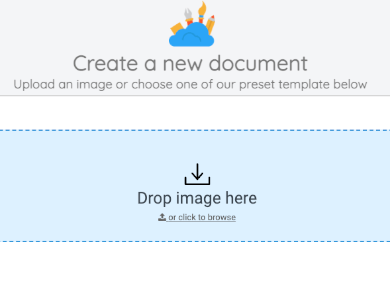
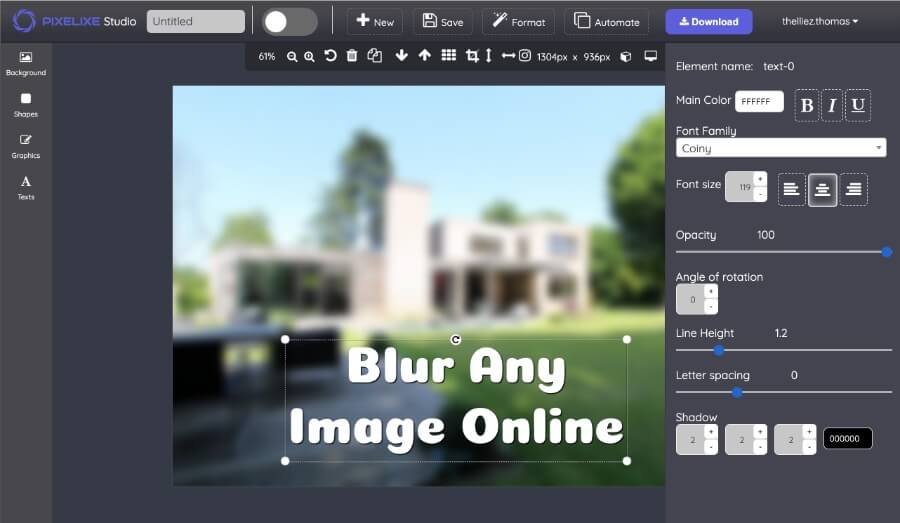
Start by opening Pixelixe Studio and dropping your photo into the editor. Once the image opens in the canvas, you can still replace it later if you want to test another portrait, product shot, or background against the same blur workflow.
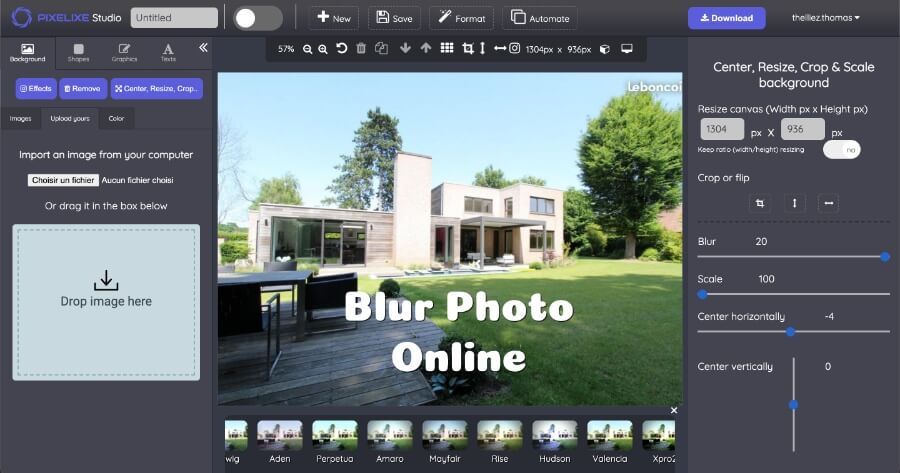
If you need to change the source image, use the left-side background controls to upload another file. That makes it easy to compare several visuals until the blur effect supports the exact use case you have in mind.
2 Blur your image
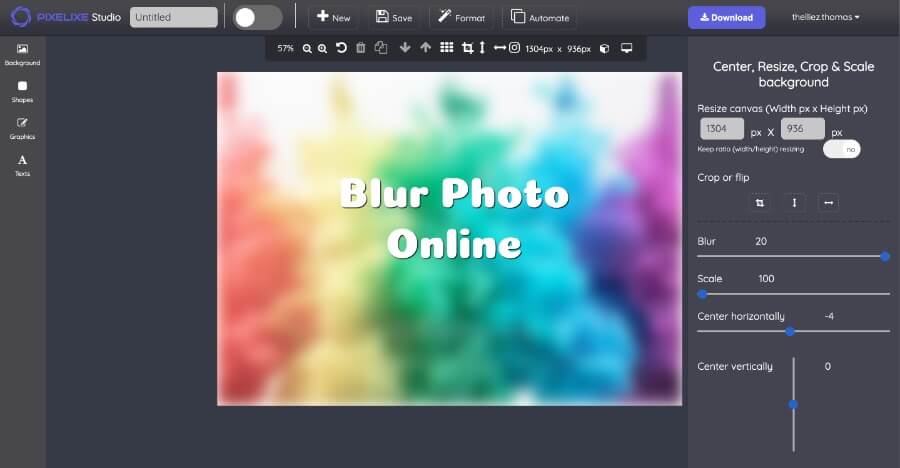
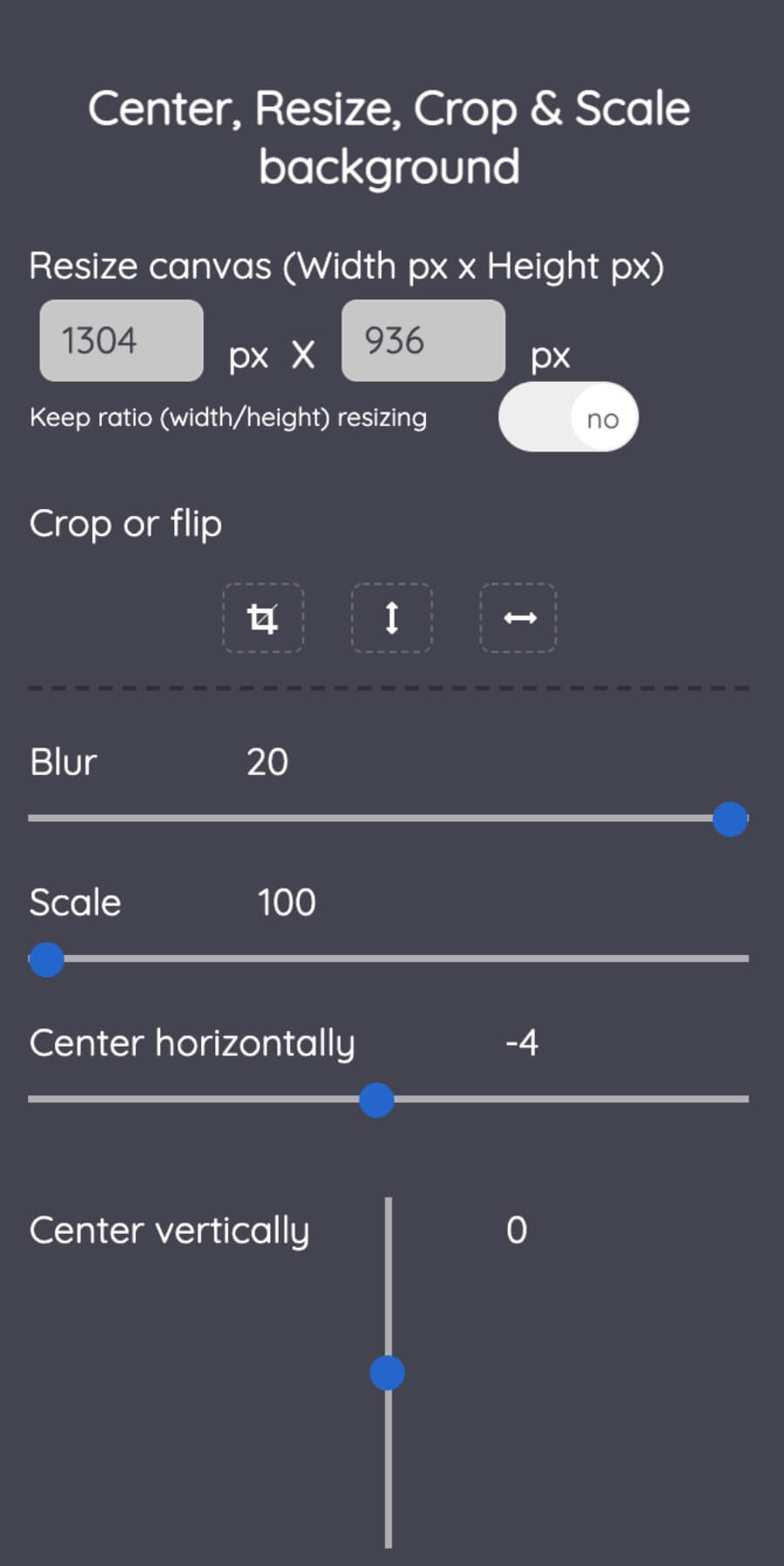
Once you upload your photo, the blur, crop, and resize panel appears on the right side of the screen. If you click elsewhere in the Studio, you can always reopen this panel from the background controls.
Move the blur slider until the effect matches your goal. A lighter blur works well for soft visual depth, while a stronger blur is more useful when you want to hide details, create separation behind text, or reduce distractions in the composition.
3 Download
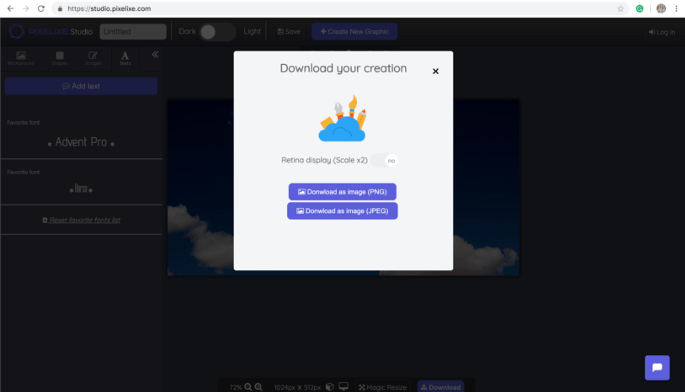
When the blur effect looks right, click the Download button from the top right corner of the editor. Export the final file as PNG or JPEG and use it immediately in a landing page, blog post, social post, catalog, or internal workflow.
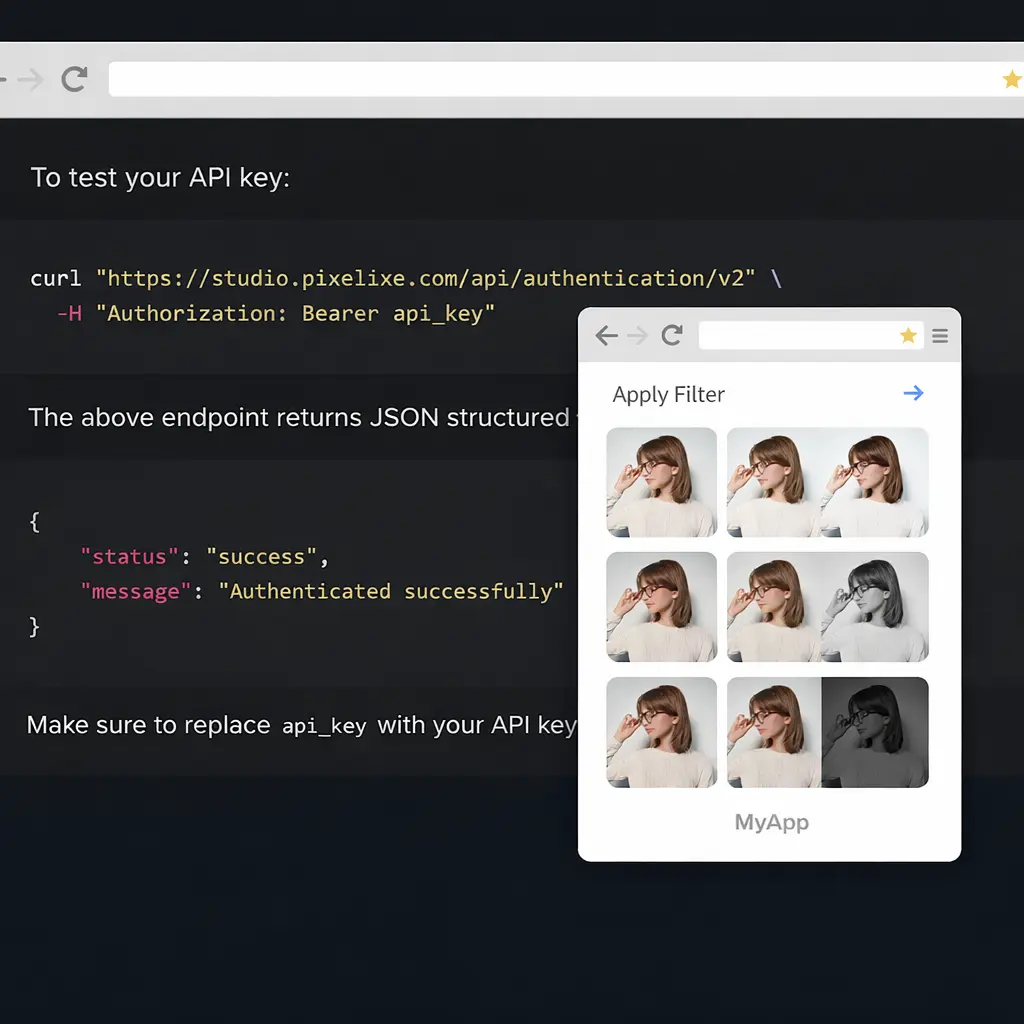
If blur effects are part of a larger product or production workflow, use Pixelixe image editing APIs. This is useful for SaaS products, marketplaces, ecommerce image pipelines, generated content, and internal tools that need repeatable image preparation.
Open Pixelixe Studio, upload your image, move the blur slider until the effect looks right, then download the blurred image as PNG or JPEG.
What can I use blurred images for?
Blurred images are useful for soft backgrounds, hero banners, text overlays, privacy masking, ecommerce visuals, social content, and branded marketing assets.
Can I blur sensitive details in a photo?
Yes. Pixelixe can be used to reduce detail in parts of an image when you want to soften distracting areas or hide sensitive information before publishing.
Can I automate image blur workflows?
Yes. Pixelixe also provides image editing and automation workflows when blur effects need to be part of larger product, SaaS, or backend pipelines.
PIXELIXEFor Developers
Need more than one-off blur edits?
Start by blurring one image in the browser, then move into APIs and embedded workflows when blur effects become part of a larger product or production system.