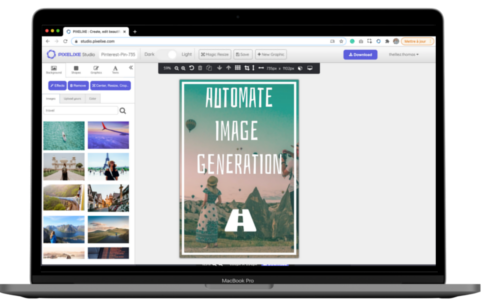
Adding a logo to a photo is one of the most common photo editing tasks for businesses, creators, photographers, ecommerce teams, and social media marketers. It helps you turn a basic image into a branded visual, protect your work with a watermark, and keep your content recognizable across websites, marketplaces, ads, and social channels.
When you add a logo to an image, the key controls are simple: upload the background photo, upload the logo, place it on the canvas, resize it, and adjust opacity if you want a watermark effect. That basic workflow is enough for most branded use cases, from product photos and marketing assets to blog images, event visuals, and social media posts.
This matters because logos and watermarks do more than decorate a picture. They help protect original photography, identify the owner of an image, reinforce a brand, and make reused content easier to attribute. For many teams, adding a logo to a photo is the fastest way to keep visual content consistent and recognizable.
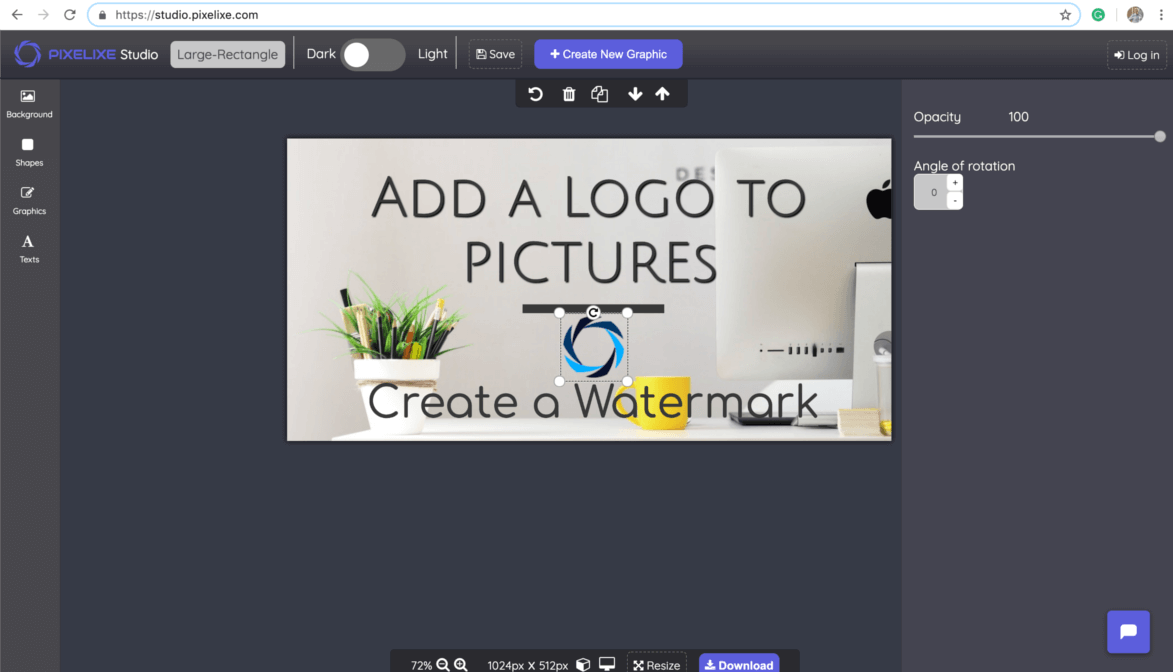
Pixelixe is an online tool that lets you add a logo to a photo, create a watermark, and export the final image directly from your browser. It is designed for non-designers and fast production: upload your image, place your logo, adjust the look, then download the result. If you need more than one-off editing, Pixelixe also supports template-based automation and API workflows.
Adding a logo to a photo online is simple with Pixelixe. Upload the background image, upload your logo, position it anywhere on the photo, resize it, and lower the opacity if you want a subtle watermark. This is useful for businesses, photographers, marketplaces, ecommerce teams, and social media marketers who want every visual asset to stay associated with the same brand.
One of the best parts of this workflow is speed: you can add a logo to a photo from your browser without installing desktop software. That makes it useful for quick edits, small teams, content creators, and businesses that need a fast logo overlay or watermark solution before publishing images online.
You can add a logo or any other image to a single photo in just 30 seconds. Drag your photo into the Background tab, upload your logo from the Graphics tab, place it on top of the image, then download the result. Your original image is not modified, no plugin is required, and the download button is available directly inside the editor.
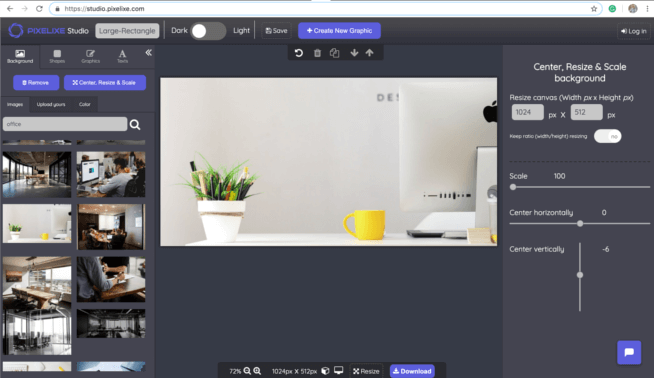
Upload the main photo you want to brand. In Pixelixe Studio, use the Background panel, choose the Upload yours tab, and drop the image from your computer into the canvas. Once the image is on the canvas, it is ready to receive your logo or watermark.
Next, upload the logo from the Graphics panel. Place it anywhere on the photo, resize it, and adjust the opacity if you want a softer watermark effect. This is the step where you turn a plain image into a branded photo ready for social media, ecommerce, websites, or ads.
Download the final image in one click. Choose PNG or JPEG depending on your workflow, and keep the file ready for social posts, product images, web publishing, presentations, or internal brand usage.
Start by opening Pixelixe Studio and dropping the photo you want to brand. Once the image is on the canvas, you can replace it anytime from the Background panel. Open Background, choose Upload yours, and drag a new photo into the drop area if you want to swap the image later. This first step defines the base photo on top of which the logo or watermark will be applied.

Once the photo is uploaded, click on the Graphics tab and open the Upload yours subtab. Drag your logo file into the drop area, then place it on top of the image. This is the step where you can create a watermark, brand a product image, or add your company logo to a marketing visual. After the logo is placed, you can drag it anywhere and resize it until the composition looks right.
N.B: the Upload yours subtab inside Graphics adds editable elements on top of the canvas, while the Upload yours subtab inside Background replaces the main photo itself.
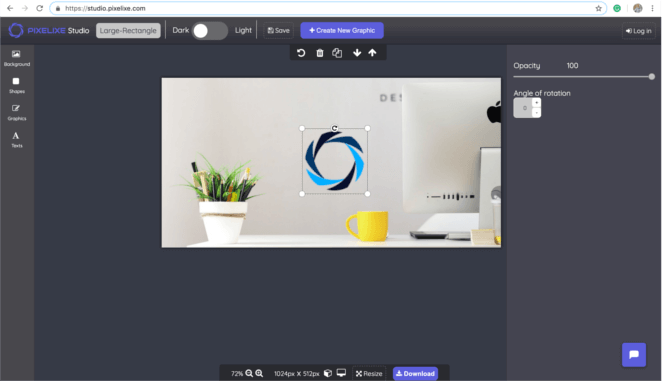
To export the branded result, click the blue Download button from the top-right toolbar. You can save the final image as PNG or JPEG depending on your needs. This makes the workflow useful for quick watermarking, branded social posts, ecommerce images, and other content that must be published fast.

Whether you want to add watermarks to photos, protect original images, or simply produce branded visual assets, this workflow covers the most common needs. Pixelixe Studio is designed for non-designers, so adding a logo to a picture is much faster than using heavy desktop tools for the same task.
Our Image Automation tools can help you generate branded images from data at scale. Any image or text element in a Pixelixe design can be replaced automatically. This is useful if you want to apply the same logo, watermark, or branding layer across a large number of photos.
Several ways to use image generation from our platform:

Upload your photo, upload your logo in the Graphics area, place it on top of the image, resize it, adjust opacity if needed, then download the final branded image.
Yes. Adding a logo with lower opacity is a common way to create a watermark for photos, product images, and branded content.
Yes. This page explains how to add a logo to a photo online from your browser without installing desktop software.
Yes. Pixelixe also supports image generation and automation workflows for teams that need to apply logos or watermarks to many images from spreadsheets or APIs.