Scale images online with independent X and Y controls
Increase or reduce image size, preview the result live, and export the scaled visual for presentations, web pages, social content, ecommerce assets, or internal workflows. This page is best when you want to scale a photo up or down rather than set an exact final width and height.
Scale X and Scale Y Enlarge or reduce image size Instant download
Keep the scaling workspace at the top of the page, then scroll for guidance on when to scale, when to resize to exact dimensions, and how Pixelixe fits into broader editing or API workflows.
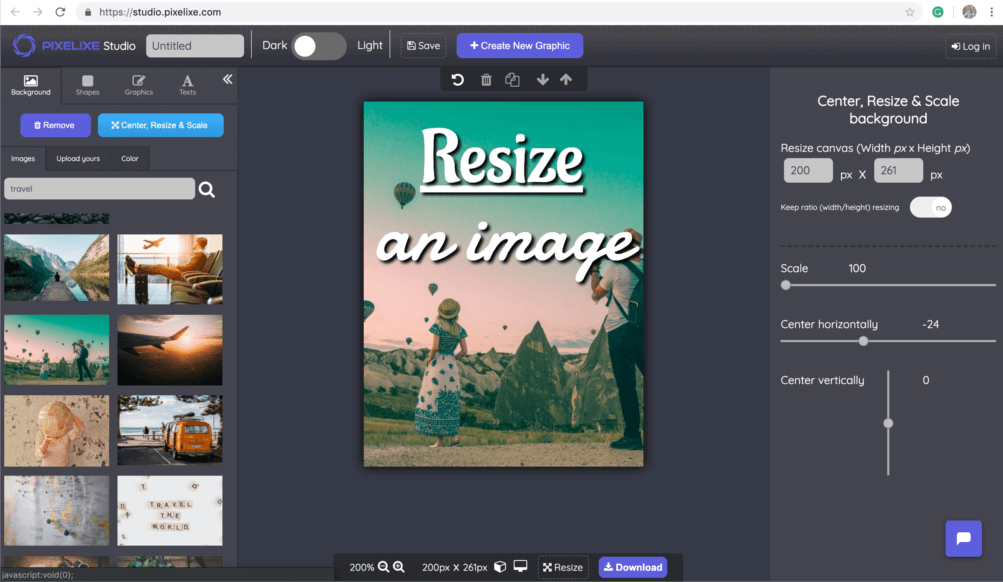
Preview and scale values
Preview how the image reacts to scaling and fine-tune each axis before you export the final file.
Scale X axis
1
Use this when you want to widen, shrink, or invert the image on the horizontal axis. A value of 1 means the original scale.
Scale Y axis
1
Use this when you want to scale the image vertically for mockups, creative experiments, layout fitting, or advanced transformations.
Useful for presentations, documentation, and slides.
Helpful for ecommerce assets, promos, and merchandising visuals.
Good for design prep before adding text, logos, or overlays.
Scaling is useful when you want to visually enlarge or reduce a photo with a factor. If you need exact final dimensions in pixels, scroll for the dedicated resize path.
When to scale an image instead of using an exact resize tool
People often search for scale image online, scale photo online, and resize photo online for related needs, but the intent is not always identical. Scaling is helpful when you want to enlarge or reduce a photo with a factor, experiment visually, or adjust one axis without deciding the exact final pixel dimensions first. Resizing, by contrast, is often the better option when you already know the exact width and height you must deliver.
Pixelixe supports both workflows. Use this page when you want slider-based scaling and a fast preview. Use Resize Image Online when you want a stricter output size for websites, newsletters, product listings, or social placements.
How to scale a photo online in 3 steps
This workflow is useful for quick transformations, creative adjustments, and any situation where you want to scale an image before placing it in a final layout. The steps are simple, but the page still needs enough supporting context to rank well for both SEO and GEO around image scaling use cases.
1
Upload your image
Start with a local photo, product image, content visual, or design asset you want to enlarge or reduce without rebuilding the visual from scratch.
2
Adjust scale X and Y
Use the sliders to scale the image horizontally and vertically. This is practical when you want a faster visual adjustment than an exact dimension-based resize.
3
Download or continue editing
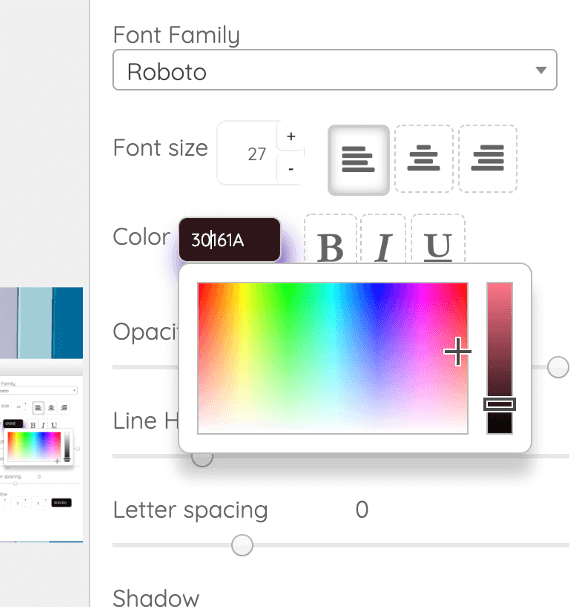
Export the scaled image right away, or keep working in Pixelixe Studio if the image still needs text, branding, filters, or composition adjustments.
Common image scaling use cases
People use image scaling when one source visual needs to be adapted quickly to a new presentation context. It can be as simple as enlarging a photo for a keynote, reducing a visual before placing it in a document, or scaling a source asset before reusing it in a creative workflow. The value is not only technical. It is operational: less time spent rebuilding assets when a scale adjustment is enough.
Enlarge visuals for decks, documentation, and internal presentations.
Reduce asset size before placing it into a design, article, or newsletter layout.
Adapt product or campaign images before building social and ecommerce creatives.
Prepare source visuals for broader editing, branding, or automation workflows.
Presentations
Scale visuals for slides and speaking material when a source image needs to feel larger or clearer in context.
Web layouts
Adjust image scale before dropping it into website sections, landing page mockups, and internal content systems.
Ecommerce
Prepare source product visuals before turning them into merchandised banners, price drops, or offer creatives.
Campaign production
Scale assets before adding messaging, overlays, or branding in a broader design or automation workflow.
Scale first, then keep editing in Pixelixe Studio
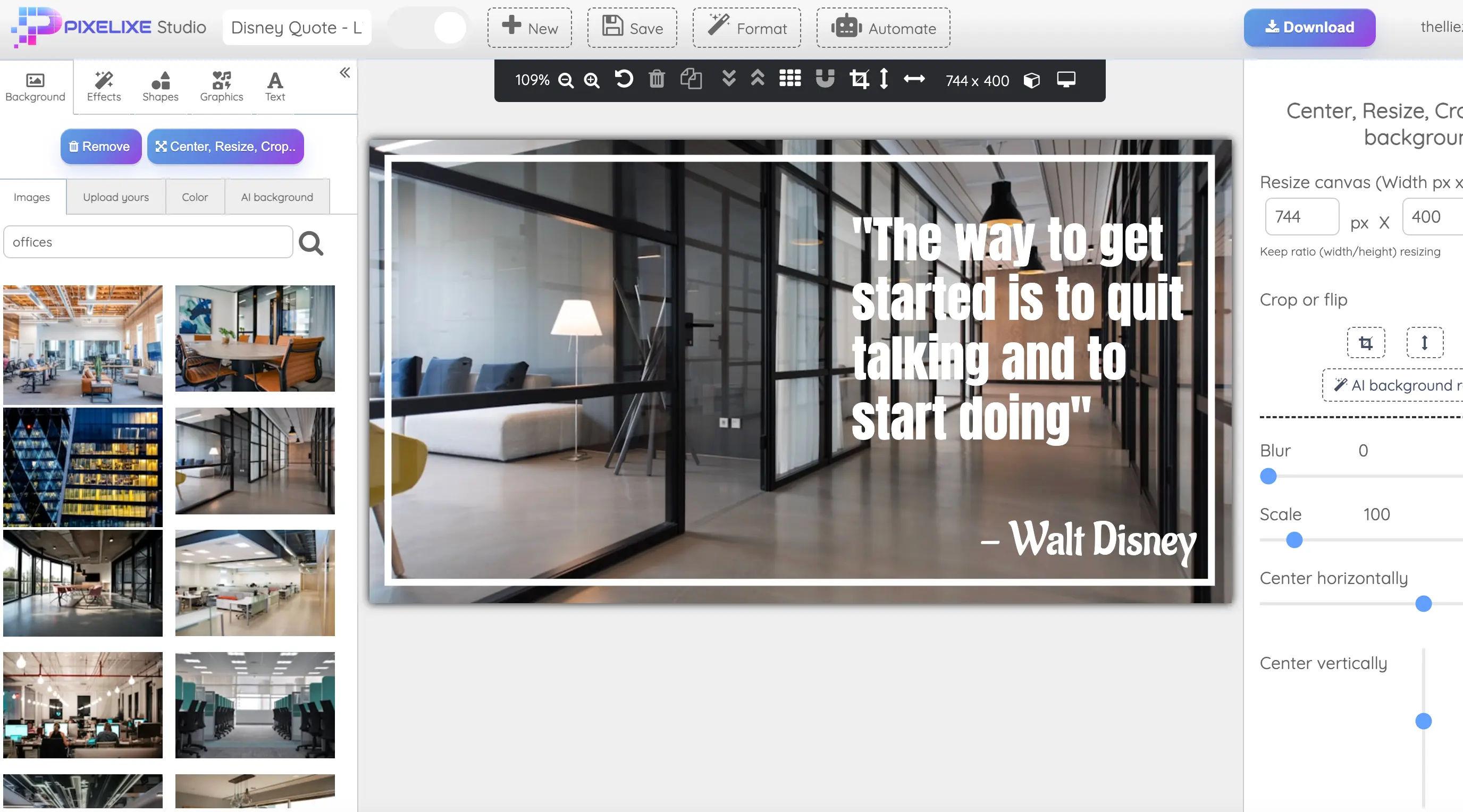
Scaling is often only one step in a larger workflow. After changing the image size, teams often need to crop the asset, add logos, add text, create a banner, or adapt the same source image across multiple formats. Pixelixe supports that broader path without forcing you to switch tools.
Need to scale images in bulk or inside your product?
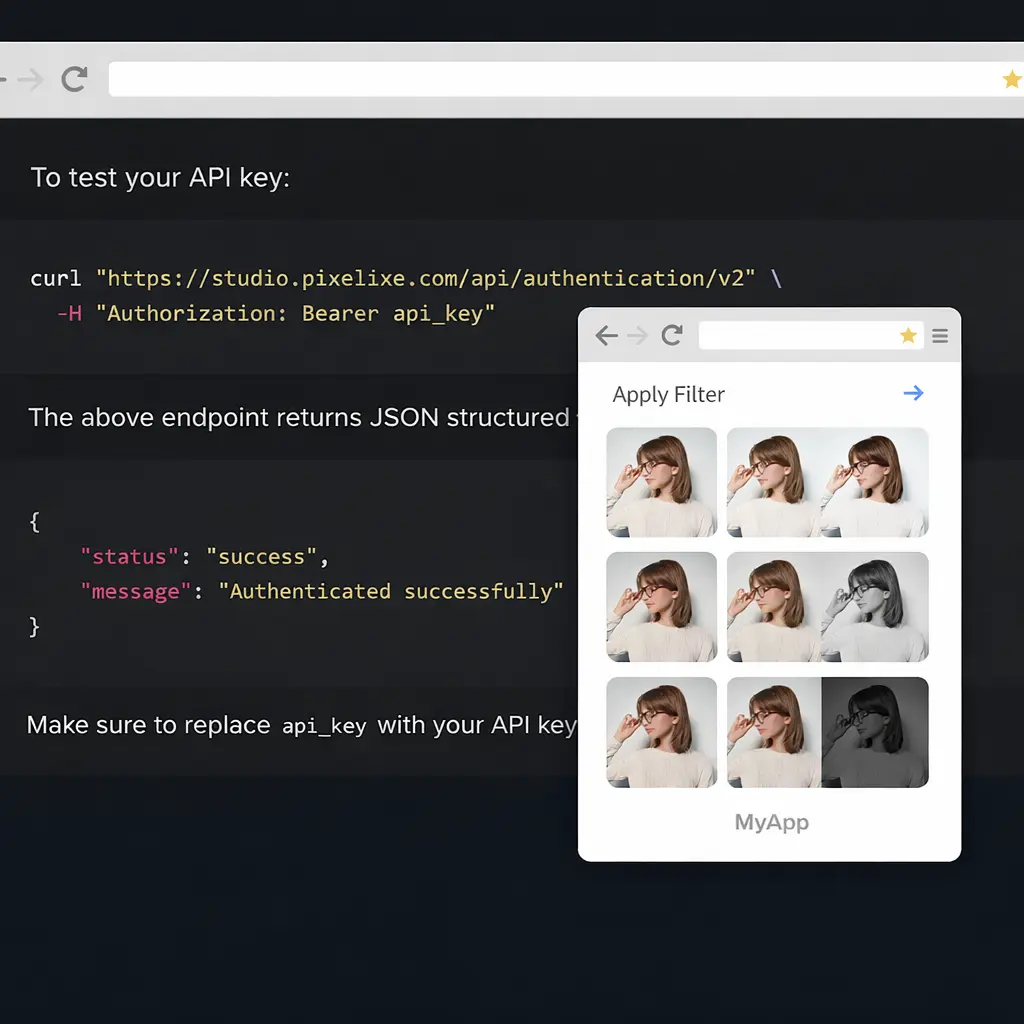
When scaling becomes part of a repeatable workflow, teams usually need more than a manual tool. Pixelixe provides image editing APIs and embedded editing options so you can scale images programmatically, integrate scaling into a SaaS workflow, or run batch media operations on top of reusable inputs.
Image Editing API for programmatic scaling, cropping, resizing, rotation, and other transformations.
Embedded editor when users need to scale and edit images directly inside your product.
Spreadsheet generation when image size changes are part of a repeatable production workflow.
Short answers for common questions about image scaling, how it differs from exact resizing, and how Pixelixe fits into larger editing and automation workflows.
How do I scale an image online?
Upload an image to Pixelixe, move the scale sliders for the X and Y axes, preview the result, and download the scaled image.
Can I enlarge and reduce image size online?
Yes. Pixelixe lets you scale images up or down, which is useful when a photo needs to fit a presentation, a website section, a social format, or an ecommerce layout.
What is the difference between scaling and resizing?
Scaling changes the image based on X and Y factors, while resizing often means setting exact width and height dimensions. Pixelixe supports both workflows.
Can I keep editing after scaling an image?
Yes. After scaling, you can continue in Pixelixe Studio to crop, add text, add logos, create social graphics, or prepare branded visuals.
Can Pixelixe automate image scaling?
Yes. Pixelixe provides image editing APIs for teams that need repeatable scaling workflows in products, backend systems, or batch media operations.