Create ad banners in 3 steps
with our online banner maker


Start from a preset banner size, edit the design, and export a banner ready for ads, websites, or ecommerce campaigns.

Why banner design still matters

Ad banner examples and social media banner formats

Ad banners still play a major role in display advertising, retargeting, ecommerce promotions, app installs, and seasonal campaign launches. A good banner needs the right size, clear text hierarchy, strong branding, and visuals that stay readable across desktop and mobile placements.

Pixelixe helps marketers, founders, ecommerce teams, and agencies create banners faster from templates instead of rebuilding each format from scratch. The same editor can also support reusable templates, spreadsheet workflows, and API-based banner generation when you need more scale.

How to create an ad banner
in 3 steps


1

Choose the banner size

Preset sizes for display and web banners

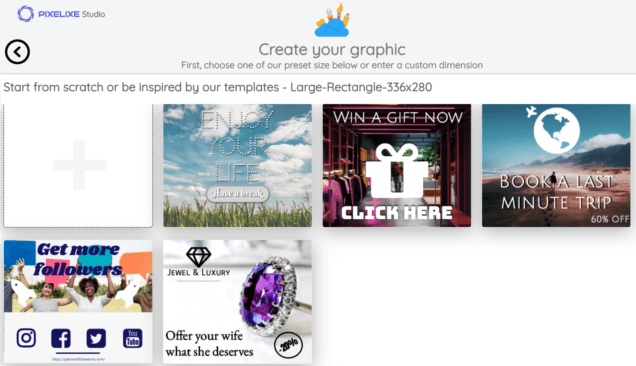
Open Pixelixe Studio and start from a banner size that already fits your campaign. Popular formats like 300x250, 728x90, 320x100, 300x600, and 970x250 are available as presets, and you can also use a custom size if your ad network or placement requires it.

2

Pick a template and edit it

Text, logos, icons, products, and branding

Choose an ad banner template or start from a blank document, then add headlines, logos, product images, offers, icons, and branded colors. Pixelixe is designed for non-designers who need a fast banner maker without the complexity of a desktop design suite.

3

Export and publish

Download a banner ready for campaign launch

When the banner is ready, export it as PNG or JPEG and upload it to your ad platform, website, landing page, ecommerce workflow, or social campaign. The preset size helps you avoid formatting issues and keeps the creative sharp in placement previews.


Select an ad banner
template
to start editing


Ad banner templates

No account required


Discover the tool used by marketers and ecommerce teams
to make banner sets faster.

Benefits of Custom Banners

Custom banners help campaigns stay recognizable, readable, and consistent across multiple placements. They make it easier to adapt one offer or one product launch across display ads, ecommerce promotions, social formats, and landing pages without redesigning every asset from scratch. With Pixelixe, you can keep the same branded layout and swap offers, headlines, products, or localized content much faster.


What Are the Right Ad Banner Sizes?

The right ad banner size depends on the ad network, placement, and device. Google display campaigns often use sizes like 300x250, 728x90, 320x100, 300x600, and 970x250, while ecommerce teams may also need campaign graphics for marketplaces, homepages, emails, or social promotions. Starting from the right preset reduces rework and makes each banner easier to reuse across channels.


Tips and Best Practices

Keep the main message short, make the call to action easy to notice, and ensure the product, offer, or headline is still readable on smaller placements. Strong banner ads usually rely on one dominant message, one visual focus, and a design system that can be reused for retargeting, promotions, localization, and A/B tests.
Tutorial: How to create an ad banner

1 Choose a template or start from the right size

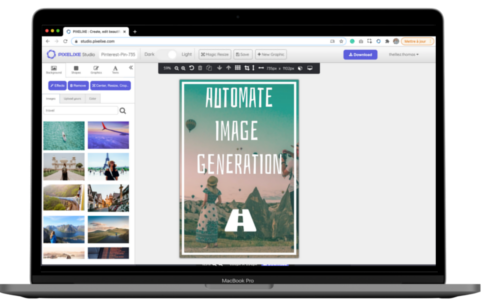
Start by opening Pixelixe Studio and choosing a preset banner size or an existing template from the banner library. Pixelixe includes common display formats such as Large Mobile Banner, Leaderboard, Large Rectangle, Medium Rectangle, and Half-Page Ad, so you can start from a canvas that already fits the campaign placement.

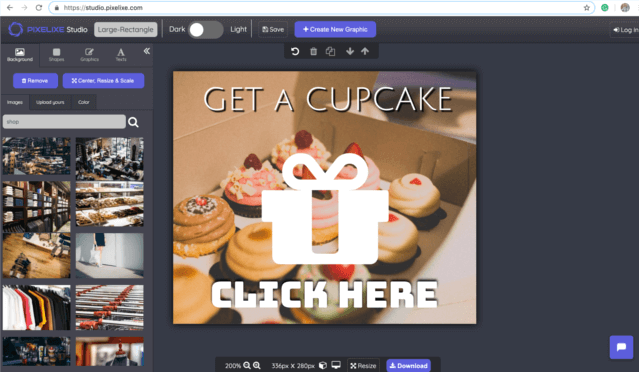
If you prefer to start from scratch, open the Background panel and upload your own image, product shot, or campaign visual. This makes it easy to build a banner around a hero product, promotion, or event visual while keeping the correct dimensions from the start.


Ad banner templates in Pixelixe Studio

2 Edit and enrich your banner

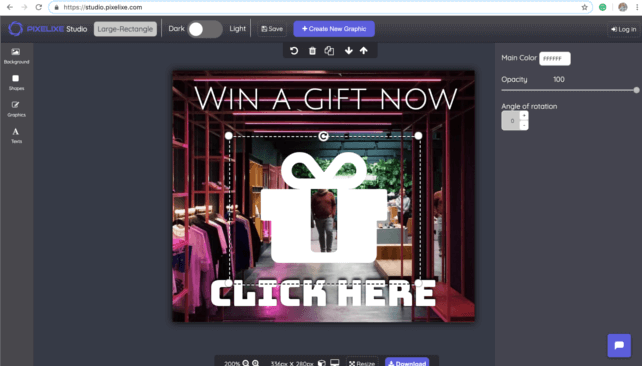
Use the editor to add headlines, prices, offers, logos, product images, icons, shapes, and branded colors until the banner communicates the campaign clearly. Pixelixe is designed for marketers, founders, and ecommerce teams that need a practical banner maker instead of a heavy desktop design tool.

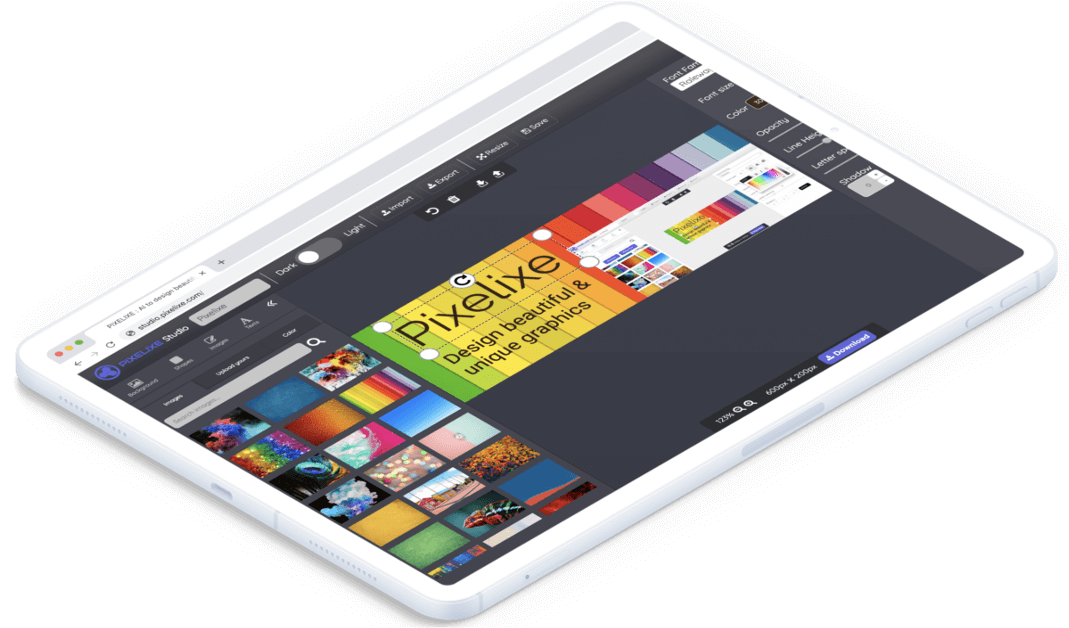
The banner editor also includes text controls to adjust font size, color, opacity, font family, line height, letter spacing, and shadow, making it easier to create banners that stay readable across multiple placements and sizes.

Ad banner maker editor in Pixelixe Studio


Create ad banner workflow in Pixelixe

3 Download

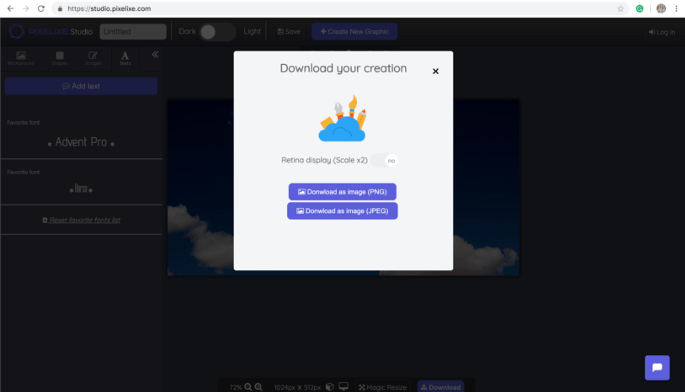
When the design is ready, click the Download button and export the banner as PNG or JPEG. You can then publish it on ad platforms, websites, ecommerce storefronts, landing pages, or email campaigns. If you need banner variants later, the same layout can also be reused with templates and automation workflows.

Download ad banner as PNG or JPEG

Create ad banner

No account required

What are the right ad banner sizes?

A large variety of ad banner sizes exist across display networks, websites, ecommerce promotions, and mobile placements. Pixelixe Studio includes preset sizes and ready-made templates for the most commonly used banner formats on web and mobile.

You can also choose a custom banner size if your placement, CMS, marketplace, or ad partner requires a specific format. Starting from the right dimensions reduces revisions and helps teams reuse the same banner logic across more placements.

Why marketing teams use PIXELIXE Studio

Fast banner workflow

Built for non-designers

Pixelixe Studio helps marketers, ecommerce teams, and founders create banner sets quickly without learning a complex design tool. Templates, text controls, shapes, icons, and image tools are available in the same editor.

No account required

for a quick test

You can try the workflow immediately without registering. Open studio.pixelixe.com, choose a banner size or template, and start editing right away.

Reusable beyond one banner

Templates, automation, APIs

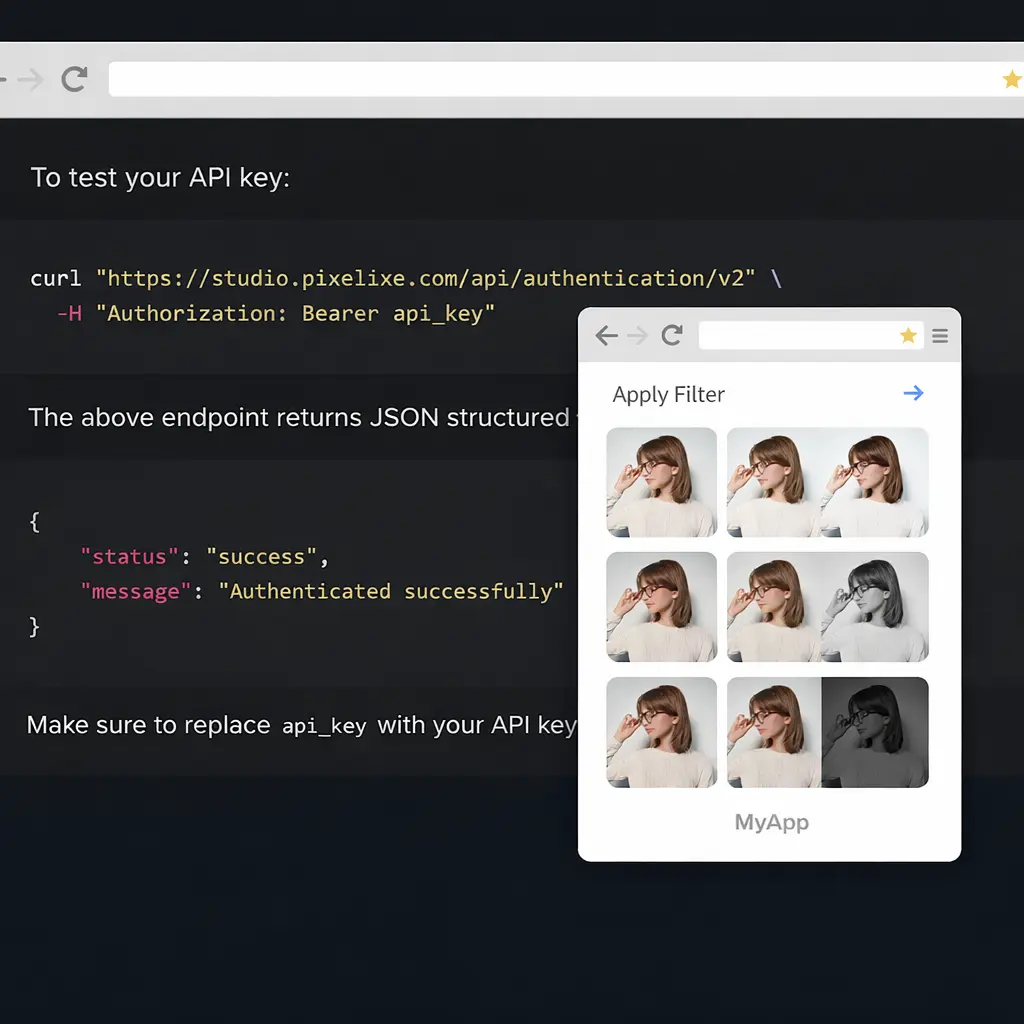
Pixelixe goes beyond one-off design. Reuse the same banner layouts for campaign variants, localized creatives, spreadsheet generation, and API workflows when your banner production needs to scale.


Open banner maker

No account required

Frequently asked questions

How do I create an ad banner online for free?

Open Pixelixe Studio in your browser, choose an ad banner template or a preset size, edit the design, and export the banner as PNG or JPEG. You can try the workflow without creating an account.

What size should an ad banner be?

The right ad banner size depends on the platform. Common display ad sizes include 300x250, 728x90, 320x100, 300x600, and 970x250. Pixelixe includes these preset banner sizes so you can start with the correct dimensions.

Can I add text, logos, and branded colors to an ad banner?

Yes. Pixelixe lets you add text, logos, icons, product images, backgrounds, and branded colors so each ad banner stays aligned with your campaign design system.

Can Pixelixe automate banner generation?

Yes. Pixelixe supports reusable templates, spreadsheet-driven image generation, and APIs so teams can create banner variants for ads, ecommerce, and localized campaigns at scale.