Choose a saved Design Set and check its included formats and available modifications before rendering.
Design Set bulk API
Multi-format image generation API from one Design Set
Send campaign data once and generate the formats saved in a Pixelixe Design Set. Receive a JSON manifest with individual outputs and errors so your backend can handle a whole campaign without treating every format as a separate integration.
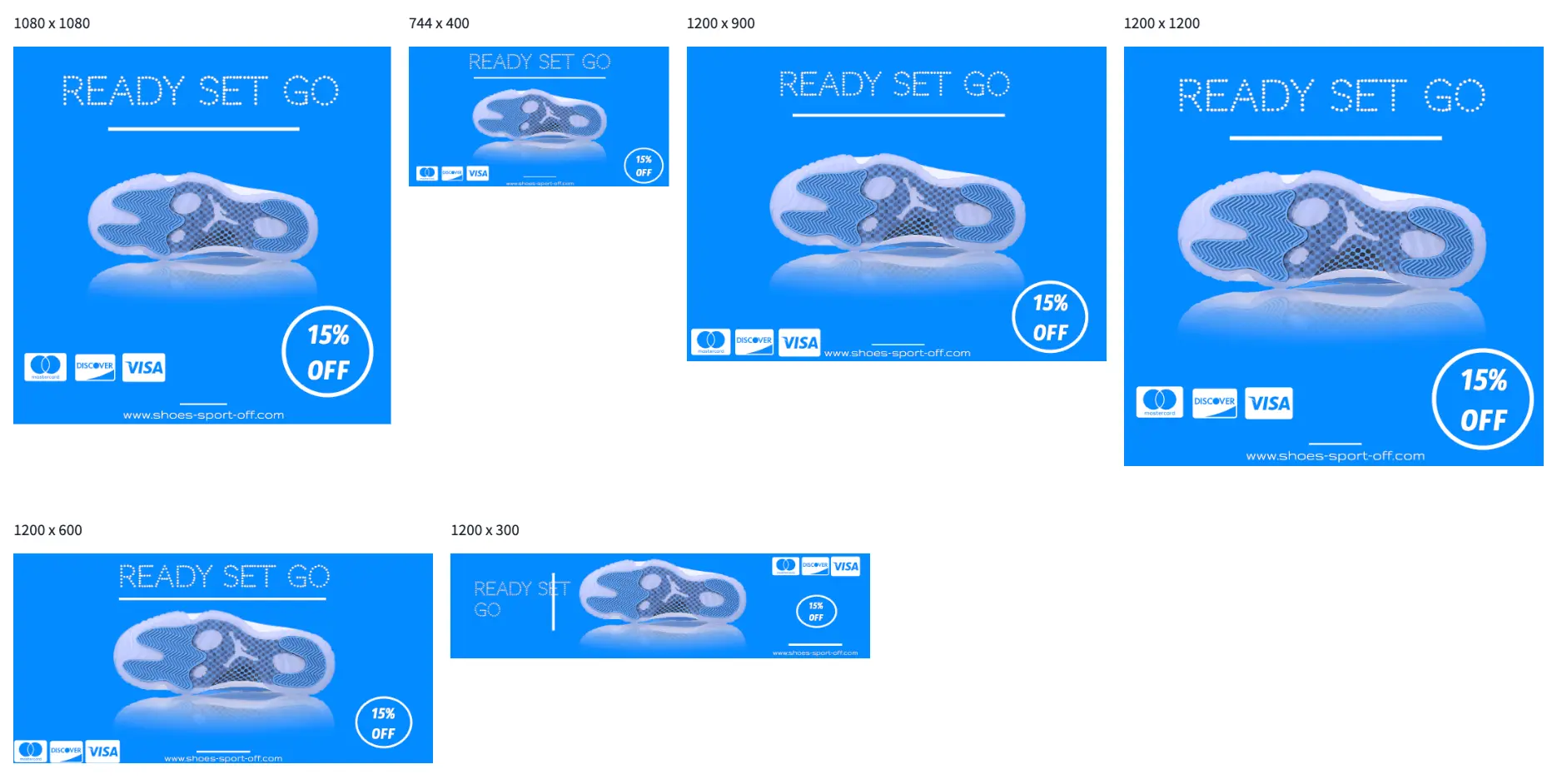
One campaign, several saved layouts
Reuse a Design Set for square, portrait and banner placements. Each layout remains an explicit format in the set.
A Design Set groups layouts, the API returns their results
Call the Pixelixe bulk endpoint with design_set_uid and your modifications. The endpoint executes the formats in that set and returns a JSON manifest. Multi-format here means multiple saved layouts and dimensions, not an arbitrary resize request or a single file encoded into every file type at once.
Send campaign text or images to the bulk endpoint and select the required output mode for that request.
Read every result. A partial_success response can contain usable assets and an error for another format.
The multi-format API contract
Use a Design Set when a campaign needs several layouts. Use the single-image endpoint when one saved document is enough.
| Field or endpoint | Purpose | Important distinction |
|---|---|---|
| GET /api/designset/search/v2 | Find a set and inspect its linked formats. | The set is a container; public asset URLs belong to its child formats. |
| POST /api/graphic/automation/bulk/v2 | Generate the formats for one Design Set. | The response is a JSON manifest even when the requested assets are HTML or PDF. |
| design_set_uid | Identify the reusable set. | A document_uid from a single-image request is not the same identifier. |
| modifications | Apply supported layer changes. | Use layer names from the source document's available_modifications. |
| format | Select image, html or pdf; json is an image-compatible alias. | Choose an output mode for the request rather than expecting every file type at once. |
| results[] | Read success or error for each format. | Check each child result as well as the top-level status. |
Generate a Design Set with one payload
Replace the API key and set UID with your own saved set. The illustrative response intentionally includes one failed format to show how the manifest works.
Request
API request
POST https://studio.pixelixe.com/api/graphic/automation/bulk/v2
Authorization: Bearer YOUR_API_KEY
Content-Type: application/json

{
  "design_set_uid": "YOUR_SAVED_DESIGN_SET_UID",
  "format": "image",
  "image_type": "png",
  "modifications": [
    {
      "element_name": "headline",
      "type": "text",
      "text": "Autumn collection"
    }
  ]
}
Response
Illustrative partial-success manifest
{
  "status": "partial_success",
  "design_set_uid": "YOUR_SAVED_DESIGN_SET_UID",
  "requested_format": "image",
  "image_type": "png",
  "success_count": 1,
  "error_count": 1,
  "results": [
    {
      "name": "Square promotion",
      "width": 1080,
      "height": 1080,
      "status": "success",
      "image_url": "https://studio.pixelixe.com/storage/file/.../square.png"
    },
    {
      "name": "Portrait promotion",
      "width": 1080,
      "height": 1500,
      "status": "error",
      "error": "Saved format document_uid not found in user graphics."
    }
  ]
}
Open and save library template packs into your own graphics before bulk automation. A missing saved child document can cause a format-level failure even when other formats succeed.
Use bulk rendering for recurring asset families
A reusable set is useful when the same campaign data appears in several prepared layouts.
Use case
Ecommerce promotion packs
Render product and offer changes into the saved square, portrait, banner and email layouts required by a campaign.
Use case
Local and regional campaigns
Apply location, offer or contact fields to a prepared family of formats. Review each market's layout and text length before automated delivery.
Use case
Marketing platform exports
Let a backend request the campaign's configured formats together and attach the successful output URLs to the correct campaign record.
Use case
Approved template reuse
Keep production tied to saved templates. Update the design deliberately, then render new data through the same integration instead of assembling layouts in every backend job.
Prepare and run a reliable bulk workflow
Separate set discovery, field mapping, rendering and result handling so failures are visible at the right level.
Step 1
Save and inspect the set
Choose a Design Set saved under your account. Inspect the formats and the source document's available_modifications.
Step 2
Map the campaign fields
Prepare modifications for actual layer names and use publicly accessible replacement image URLs where required.
Step 3
Send the bulk request
Call the bulk endpoint from your backend with the set UID, output mode and modifications. Keep the API credential on the server.
Step 4
Process every format
Persist successful results and route failed formats to an explicit repair or retry path. Do not mark a whole campaign complete when a required format failed.
Handle the manifest in your backend
Check child results before handing assets to another system. Persist the successful ones and make the failed formats visible to the calling workflow.
Node.js response handling
const response = await fetch(
  "https://studio.pixelixe.com/api/graphic/automation/bulk/v2",
  {
    method: "POST",
    headers: {
      Authorization: "Bearer " + process.env.PIXELIXE_API_KEY,
      "Content-Type": "application/json"
    },
    body: JSON.stringify({
      design_set_uid: process.env.PIXELIXE_DESIGN_SET_UID,
      format: "image",
      image_type: "png",
      modifications: [
        { element_name: "headline", type: "text", text: "Autumn collection" }
      ]
    })
  }
);

if (!response.ok) throw new Error("Bulk request failed: " + response.status);
const manifest = await response.json();
if (!Array.isArray(manifest.results)) throw new Error("Missing results manifest");

const completed = manifest.results.filter(item => item.status === "success");
const failed = manifest.results.filter(item => item.status !== "success");
console.log({ status: manifest.status, completed, failed });
This example returns the result groups for your application to handle. Add your own persistence, retry policy and delivery logic; it does not claim that Pixelixe retries failed formats automatically.
Understand bulk result statuses
A transport response and a completed campaign are separate checks.
| Status | Meaning | Next step |
|---|---|---|
| success | All requested formats succeeded. | Persist the outputs and complete delivery after your own validation. |
| partial_success | Some formats succeeded and others failed. | Keep the successful assets and inspect each failed format. |
| error | The batch produced no usable result or failed before generation. | Inspect the reported error and correct the request or set prerequisites. |
| results[].status | The state of an individual format. | Use it to decide which output can be delivered and which needs attention. |
Bulk API references
The payload and status handling follow the published Pixelixe contract checked 20 October 2026. The sample IDs and manifest are illustrative; no paid render is triggered by opening this page.
Related Pixelixe workflows
Use these connected pages to evaluate the implementation path, adjacent use cases, and Pixelixe product fit.
FAQ
Can one API call generate several image sizes?
Yes. The bulk endpoint generates the formats configured in a saved Pixelixe Design Set and returns a result for each format.
Is this the same as resizing an uploaded image?
No. A Design Set contains prepared layouts. The request applies modifications to those formats rather than creating arbitrary dimensions from a resize parameter.
What happens if one format fails?
The manifest can report partial_success. Read results[] to retain successful outputs and identify failed formats for repair or retry in your application.
Can the bulk API return editable HTML?
The published contract accepts format html and returns a JSON manifest for the generated assets. Use the returned editable document through the documented editor workflow.
Why does a library template pack fail?
Library packs must be opened and saved into your own graphics before they become bulk-automatable. Inspect each child format and any missing saved document UID.
Should I use this for one image?
Use the single-image Image Automation API when you only need one document. Use bulk generation when a saved set of formats matches the required campaign outputs.
Generate your next campaign from a saved set
Prepare one Design Set, map a real campaign field and inspect every returned format before connecting delivery.