
Edit any image browsing the web with Pixelixe Photo Editor Chrome extension

The Pixelixe Chrome extension is built for one very practical job: open an image you find on the web in Pixelixe Studio and start editing it immediately.
Instead of downloading a file, reopening another app, and rebuilding the visual from scratch, you can move from image discovery to editing in a few clicks. That is useful for marketers creating quick campaign visuals, ecommerce teams preparing product creatives, and content creators who need to annotate or repurpose web images fast.
Choose the right way to open an image
The browser extension is a shortcut into Pixelixe Studio. The publisher’s Chrome Web Store listing describes the image context-menu action; it does not establish compatibility with every browser version, managed device or website.
| Starting point | Practical next step |
|---|---|
| An ordinary image with the extension available | Use the image context menu, then check the file that opens in Studio. |
| A direct image URL | Use the URL workflow below; a webpage address is not necessarily an image address. |
| An image behind a login or an expiring link | If you have permission, save a local copy and upload it rather than relying on a private URL. |
| An unavailable browser extension | Open Pixelixe Studio directly and upload the image. |
Before exporting, check the canvas dimensions, text wrapping and the final downloaded file. Opening an image successfully does not grant permission to reuse it: confirm the rights before publishing a derivative visual.
For the next editing step, use the logo-on-photo guide or the text-on-photo tool. When a one-off edit becomes a recurring campaign task, move to an approved template and image-generation workflow.
Documentation reviewed November 1, 2026. No extension installation or browser-compatibility benchmark was performed for this revision.
The extension is available in the Chrome Web Store:
Why this workflow is useful
The main advantage is speed. When you are already browsing, researching, or collecting inspiration, you do not want extra friction between “I found the image” and “I can use this in a draft.”
With the extension, you can:
- open a web image directly in Pixelixe Studio
- add text, overlays, shapes, or other assets on top of it
- turn a reference image into a branded visual faster
- skip a chunk of manual file handling
If you regularly produce social or campaign graphics, this workflow fits well with social visuals that drive action, faster content creation at scale, and broader automation workflows for image generation.
Step-by-step: how to edit a web image with the extension
1. Install the extension
Install the Pixelixe Graphic and Image Editor extension from the Chrome Web Store.
2. Find the image you want to reuse as a starting point
Browse normally, then right-click the image you want to edit.
3. Choose Edit this image
The extension sends the selected image into Pixelixe Studio so you can start working on it immediately.
4. Edit and export inside Pixelixe Studio
Once the image is open in Studio, you can add text, layer other assets, crop, annotate, or build a quick branded composition around it.
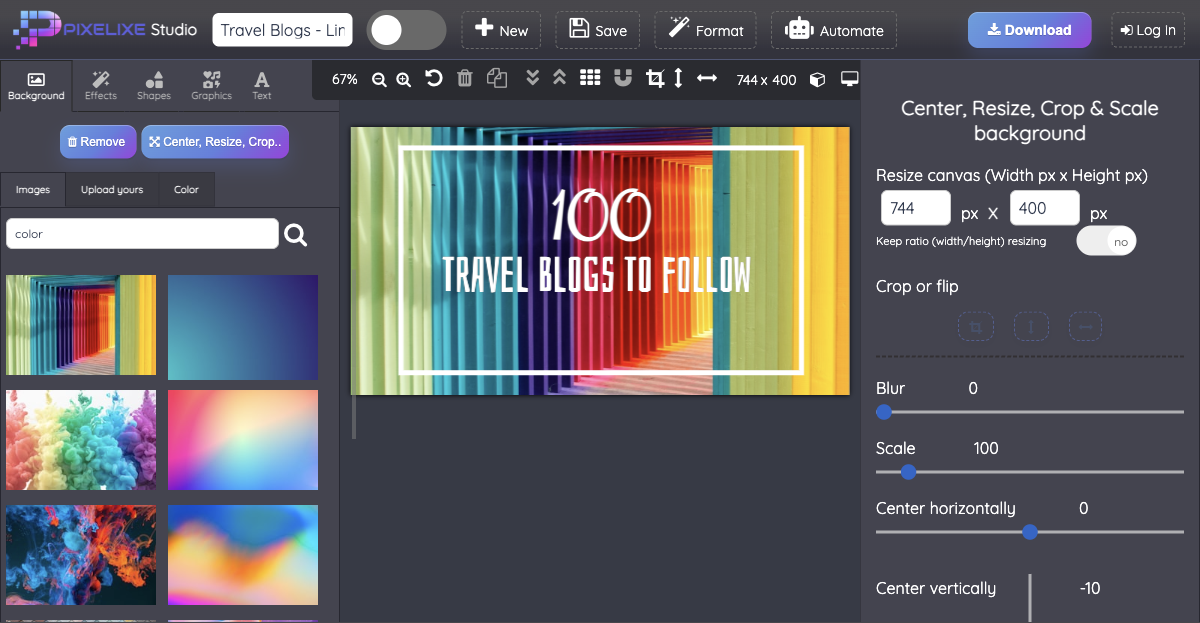
5. Download or continue refining
From there, you can export the visual or continue turning it into a social post, banner, promo graphic, or lightweight mockup.
Another fast option: open an image by URL
You can also open an image in Pixelixe Studio directly through its URL:
https://studio.pixelixe.com/#imageUrl=http://the-image-of-your-choice.png
That is useful when you already know the image source and want to skip the browser context-menu step.
Who this is most useful for
Marketers
Marketers can take a web image, add a headline, product callout, or CTA, and quickly turn it into a draft for social, blog, or email use.
Ecommerce teams
Ecommerce teams can use the extension to test merchandising ideas, annotate product-related images, or prepare rough creative concepts before moving into repeatable banner production.
Content creators
Content creators can capture inspiration, add commentary, or transform source imagery into an explainer visual without breaking the browser-based workflow.
If image refinement is part of your day-to-day process, it is also worth reading graphic design for photographers and tips for engaging social graphics with automation tools.
Tips and troubleshooting
The option does not appear when I right-click an image
Make sure you are clicking the image itself, not a page background or a protected element inside a custom viewer.
The image opens, but I need to build more than a quick edit
That is fine. The extension is just the shortcut into Pixelixe Studio. Once you are inside Studio, you can continue layering, styling, and exporting as needed.
Can I reuse any image I find online?
No. The extension makes editing easier, but usage rights still matter. Always confirm that you are allowed to reuse the image before publishing it.
Is this only for quick edits?
No. It is most valuable as a fast entry point, but you can continue turning the image into a more complete graphic once it is open in Pixelixe Studio.
Final note
If most of your image work starts in the browser, this extension removes a surprisingly annoying part of the process. Install it, test it on a real workflow, and see how much faster it is to move from found image to usable visual inside Pixelixe Studio.